Making Clips
The dashboard
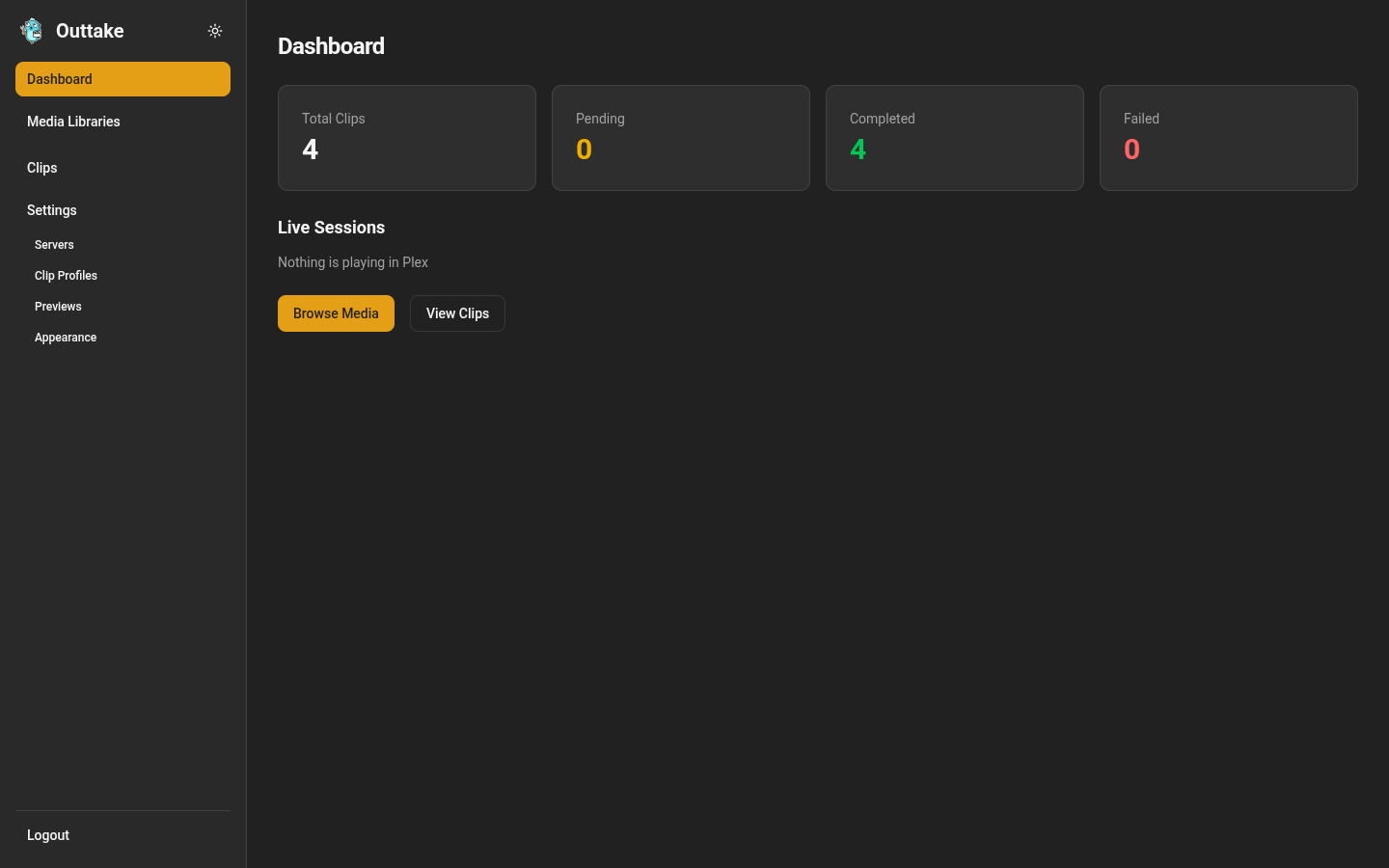
The dashboard counts your clips by status, and each count opens the matching clips. It also lists Live Sessions: what is playing in Plex right now. Choose Clip Now next to a session to open that title with its current position, or Browse Media to find a title yourself.
Find a title
Open Media Libraries, then search or browse a library and open a title. Folders and shows open their contents until you reach something playable.
Mark the start and end
A title’s page has two parts: Plex Playback and New Export.
- From Plex. Play the title in any Plex client. Plex Playback shows the session, and Set Start From Plex and Set End From Plex read the client’s position the moment you choose them. Pause first for an exact mark: a playing client reports its position only every few seconds.
- By hand. Type Start and End as hours, minutes, seconds, and milliseconds, such as
00:01:23.456.
Length shows how long the selection is and the longest a clip may be, ten minutes unless OUTTAKE_MAX_CLIP_DUR says otherwise.
Export
Under New Export:
- Set Export As to Video Clip, GIF, or Screenshot. A screenshot takes a single Time instead of a start and end. A GIF also takes a width and a frame rate.
- Pick a Profile, which sets the quality, size, and whether a video clip keeps HDR. Profiles and Settings describes them.
- Check Trim black bars to crop letterboxing.
- For a title with more than one audio track, pick the Audio Track.
- Choose Preview to render the selection and watch it, then Save.
Outtake checks the selection before it renders anything: it must fit within the title, within the longest clip allowed, and use an audio track the title has.
Saved exports render in the background. Each card shows its progress, and stays usable when you leave the page.
The Clips page
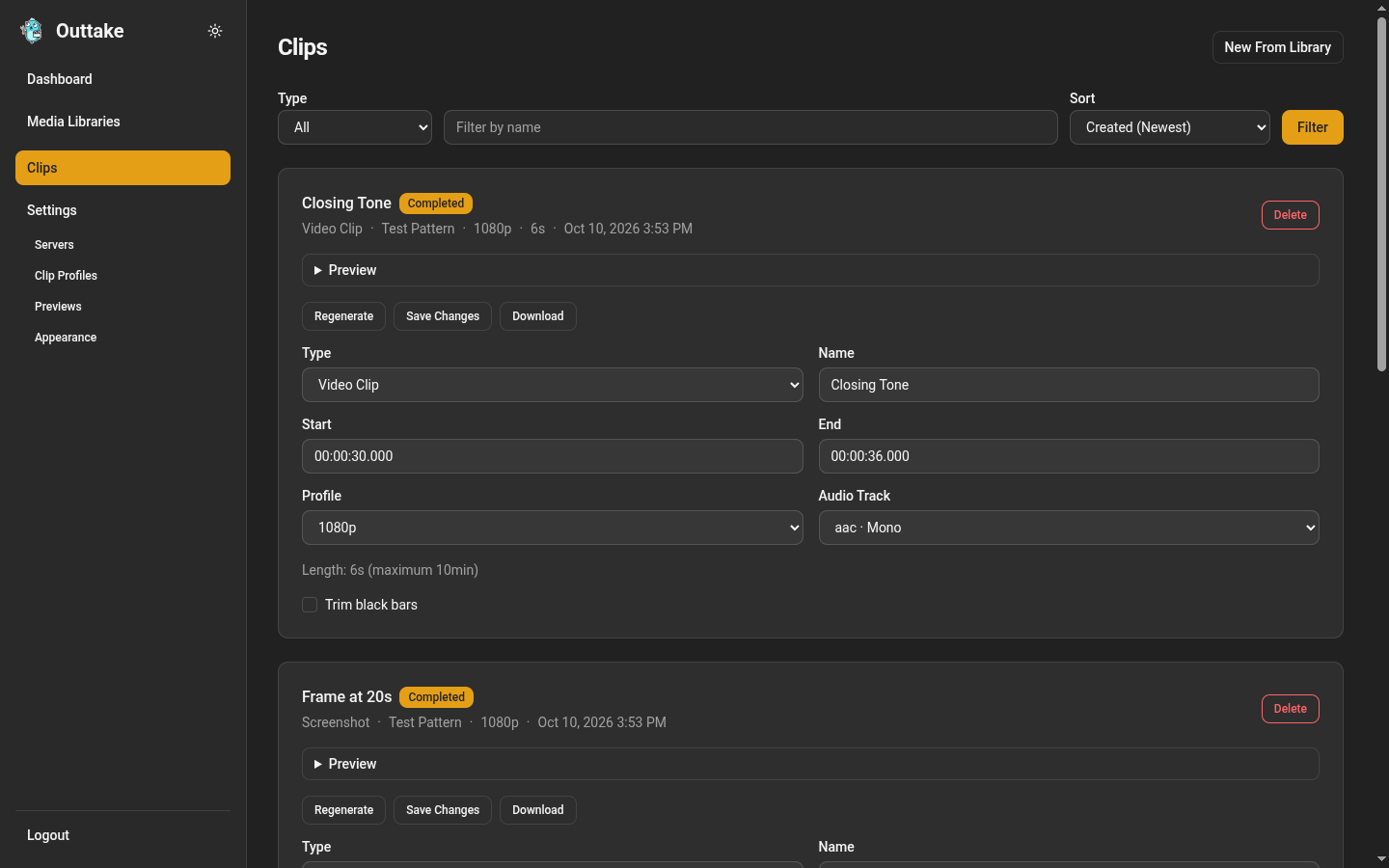
Clips lists everything you made, newest first. Filter by Type or name, or change the sort order.
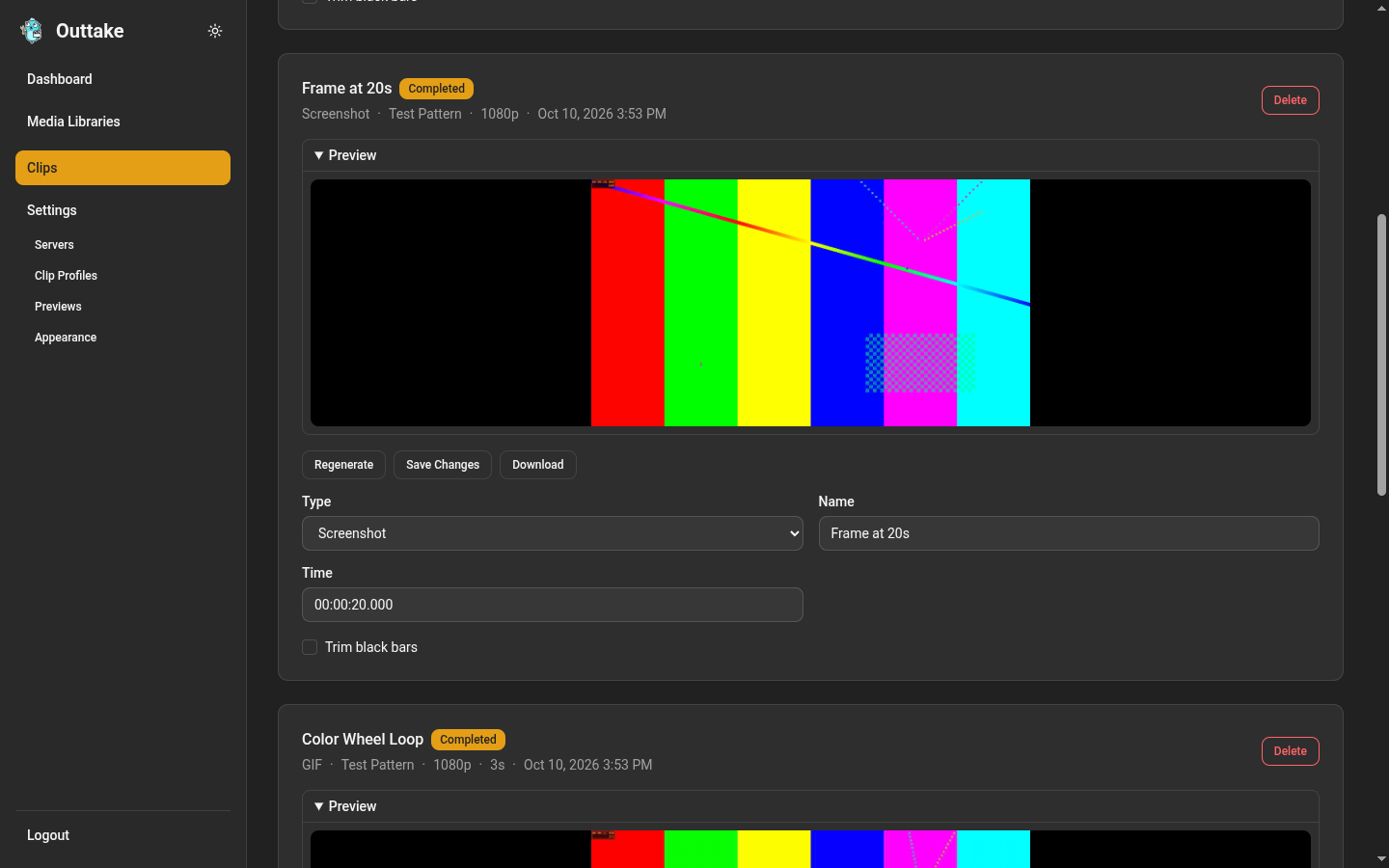
Each card opens to a Preview of its file and carries the same settings as the export form.
- Save Changes keeps the settings on the card. A new type renders the clip again right away. Any other change, such as a new selection or profile, describes the clip’s next render.
- Regenerate saves the settings on the card and renders the clip with them, using the profile’s current values. The old file stays in place until the new one is ready, so a failed or canceled render loses nothing.
- Download saves the file once the clip is Completed.
- Delete removes the clip and its files.
A clip that is still rendering only takes a rename. Wait for it to finish, or choose Cancel to stop it, to change anything else.
Each player shows a badge in its corner naming what it plays, such as SDR · 1080p or HDR · 4K.